Salesforce Phishing-Resistant MFA: Step-by-Step Guide
This article has been updated with new deadlines as of July 2, 2026
Salesforce is rolling out new phishing-resistant multi-factor authentication (MFA) requirements for high-access users in summer 2026 as part of its broader security roadmap. The change is designed to strengthen protection against modern phishing attacks that can bypass passwords and traditional MFA methods. For Salesforce admins, consultants, and IT teams, the biggest priority is preparation. That means identifying affected users, selecting an approved authentication method, validating sandbox access before enforcement begins, and coordinating any SSO or service-account exceptions early.
Because the rollout begins in sandbox before production, organizations have a valuable opportunity to test configurations and train users before the enforcement window reaches live environments.
Canvas Cloud created this guide to help walk you through the practical implementation steps for Salesforce phishing-resistant MFA, including user identification, setup, supported authentication options, sandbox testing, SSO considerations, and communication planning so your team can prepare ahead of the upcoming deadlines.
Background: Why This Is Happening
Modern phishing attacks are now smart enough to get around basic security like text codes or simple “yes/no” notifications on your phone. They do this by using fake login pages that act as a middleman. When you log in on the fake site, it steals the “digital key” (called a session token) that says you're already logged in. Once the hackers have that key, they can get into your account without ever needing to know your password or see your MFA code.
To help prevent this from happening to users with the highest level of access to Salesforce, a more secure version of MFA called “phishing-resistant MFA” is becoming required for System Administrators or users with one of the following permissions: View All Data, Modify All Data, Customize Application, or Author Apex. These users are considered to have “elevated permissions” within Salesforce and are the targets of most phishing attacks.
What Qualifies as Phishing-Resistant
Salesforce identifies built-in authenticators or security keys as phishing-resistant MFA. Examples of built-in authenticators are Touch ID on MacOS/iOS and Windows Hello, while security keys can be any hardware or physical keys that support Universal 2nd Factor (U2F) and WebAuthn (FIDO2) standards, like YubiKey or Google Titan. Some password manager applications work if they allow Passkeys that use WebAuthn, such as 1Password, NordPass, Keeper Security, Dashlane, and RoboForm.
Authenticator apps that rely solely on Time-based One-Time Passwords (TOTP), like Salesforce Authenticator, Google Authenticator, Authy, Microsoft Authenticator, as well as push notification-based authentication, like a text message, do not qualify as being secure enough for users with elevated permissions.
Key Deadlines
Phishing-Resistant MFA Enforcement for Privileged Users, Including Admins (Updated July 2, 2026)
Sandboxes: Starting July 6, 2026, staggered over a 2-day window
Production: Starting July 20, 2026, staggered over a 15-day window
MFA Enforcement for All Employee Users (Updated July 2, 2026)
Sandboxes: Starting July 6, 2026, staggered over a 2-day window
Production: Starting July 20, 2026, staggered over a 15-day window
How to Prepare
Technical folks, keep reading our step-by-step implementation guide for Salesforce’s new phishing-resistant multi-factor authentication (MFA) requirements.
Not technical? Send this blog link to your Salesforce admin.
Need help? Let’s talk.
Salesforce Phishing-Resistant MFA: Step-by-Step Implementation Guide
STEP 1: Identify Who Is Affected
Run a report using the User Access and Permissions Assistant app in your org to find all users with:
System Administrator profile
One of the following permissions: View All Data, Modify All Data, Customize Application, or Author Apex
If you prefer dev console or Workbench, you can use a SOQL Query similar to the following:
SELECT Id, Name, Username, Email, Profile.Name
FROM User WHERE IsActive = true
AND Id IN ( SELECT AssigneeId
FROM PermissionSetAssignment
WHERE PermissionSet.PermissionsViewAllData= true
OR PermissionSet.PermissionsModifyAllData= true
OR PermissionSet.PermissionsCustomizeApplication = true)
These are the users who must switch to phishing-resistant MFA before the deadlines pass.
STEP 2: Run the MFA Requirement Checker
Salesforce provides a free MFA Requirement Checker that involves answering a few questions. It can give you a clearer picture of what's been done and what needs to be upgraded.
STEP 3: Choose the Right Phishing-Resistant Method
Option A: Built-In Authenticators (aka Biometrics, typically free)
Touch ID (Mac/iPhone)
Face ID (iPhone)
Windows Hello (Windows PC with fingerprint reader or camera)
Option B: Enterprise Password Management (free to low-cost)
Some Enterprise Password Management Applications support Passkeys that leverage WebAuthn, such as 1Password, NordPass, Keeper Security, Dashlane, and RoboForm.
Note: Chrome’s built in Google Password Manager also stores Passkeys using Webauthn, while not explictily called out in Salesforce’s documentation, which may also suffice this requirement.
Option C: Hardware Security Keys (~$25 - $50 per key)
Small physical devices that are easy to use because there's nothing to install and no codes to enter. Salesforce supports USB, Lightning, and NFC keys that support the WebAuthn or U2F standards, including Yubico's YubiKey and Google's Titan Security Key.
For a list of YubiKeys that are compatible with Salesforce, check it out HERE.
STEP 4: Test in Sandbox First
Use the June 22, 2026 sandbox enforcement as your dry run. Have admins log into the sandbox with their new phishing-resistant method registered, confirm everything works, then roll out the changes to production before July 20, 2026.
STEP 5: Enable the Methods in Salesforce Setup (Admin Task)
Log into Salesforce as an admin
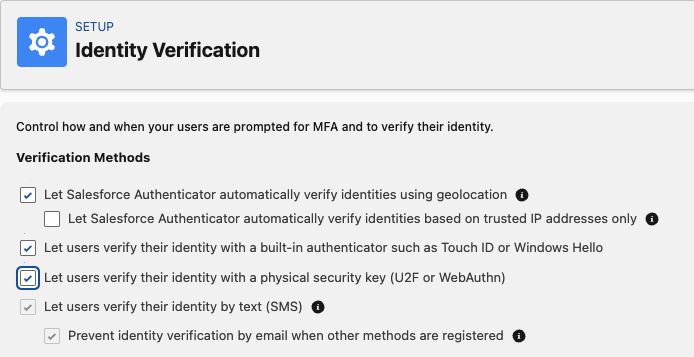
Go to Setup → search “Identity Verification”
3. Ensure “Let users use built-in authenticators” and “Let users use security keys” are both enabled
STEP 6: Each Admin Registers Their Device (User Task)
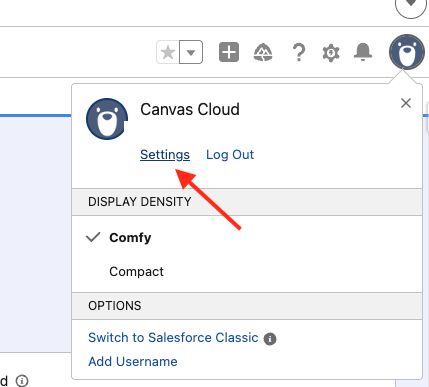
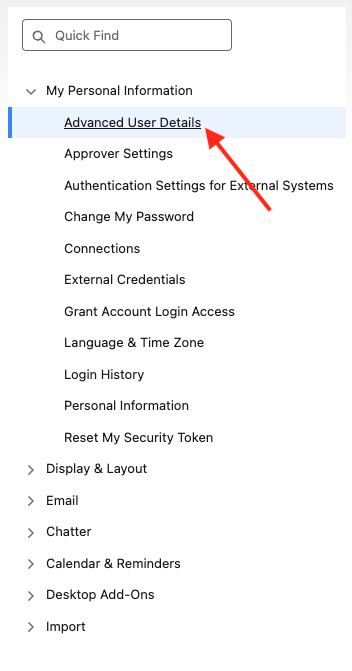
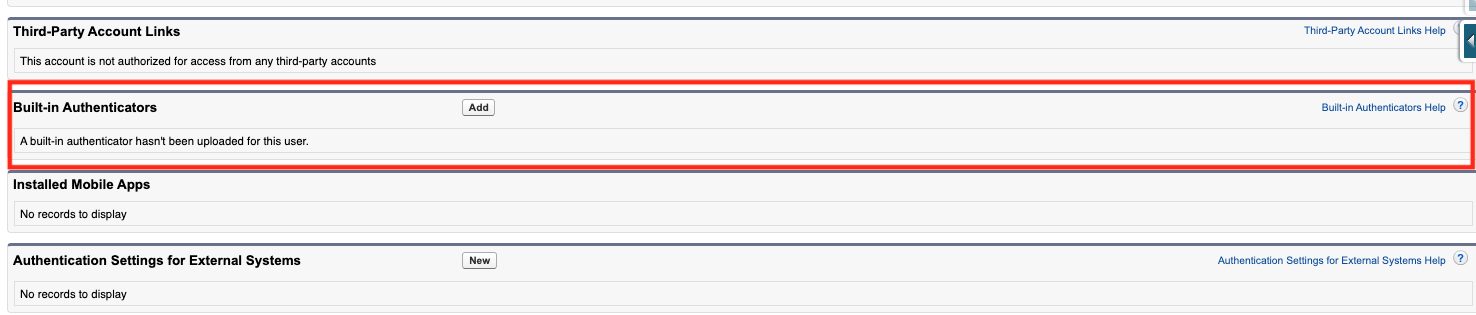
Every user impacted by the Phishing-Resistant MFA requirement can click on their Avatar → Settings → Advanced User Details → Built-In Authenticators and add the relevant authentication method.
Click their profile avatar (top right)
Click Settings
3. Click Advanced User Details
4. Scroll to Built-In Authenticators section
5. Click Add and follow the on-screen prompts (browser will trigger their device's biometric or key)
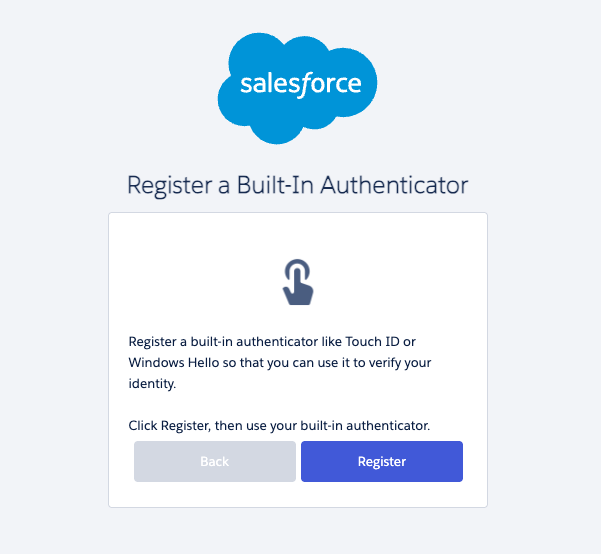
6. Click on the Register button, and one of your built-in authenticators will pop up
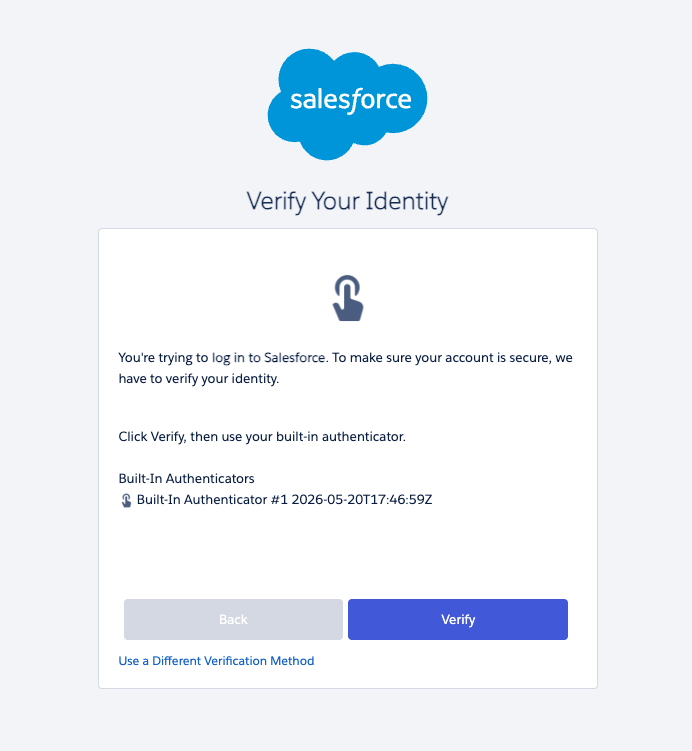
7. A Verify Your Identity screen will appear, click on the Verify Button
8. To add a Physical Key, please follow these steps from SalesforceBen
STEP 7: Handle SSO Environments (If Applicable)
To make SSO work correctly, your IT team must configure it to send a “secret signal” (called ACR or AMR) that proves the user used a fingerprint, face scan, or a physical security key to log in. If these signals are not passed to Salesforce during an SSO login, Salesforce will force the user to register a passkey as part of their login process. This applies to orgs using Okta, Azure AD, Google, Ping, ADFS, etc.
STEP 8: Handle the "Waive MFA" Permission
After enforcement, the “Waive Multi-Factor Authentication for Exempt Users” permission will no longer automatically waive the MFA requirement. To restore this exemption for valid testing/automation tools, admins must proactively contact Salesforce Support for approval.
Identify any service/automation accounts using this permission now and get ahead of the support request.
STEP 9: Communicate to Affected Users
Send a heads-up to all affected admins with:
What’s changing and why
Which method they'll be using (biometric or key)
The exact steps from Step 5 above
A deadline to register before July 20, 2026
Quick Reference Card
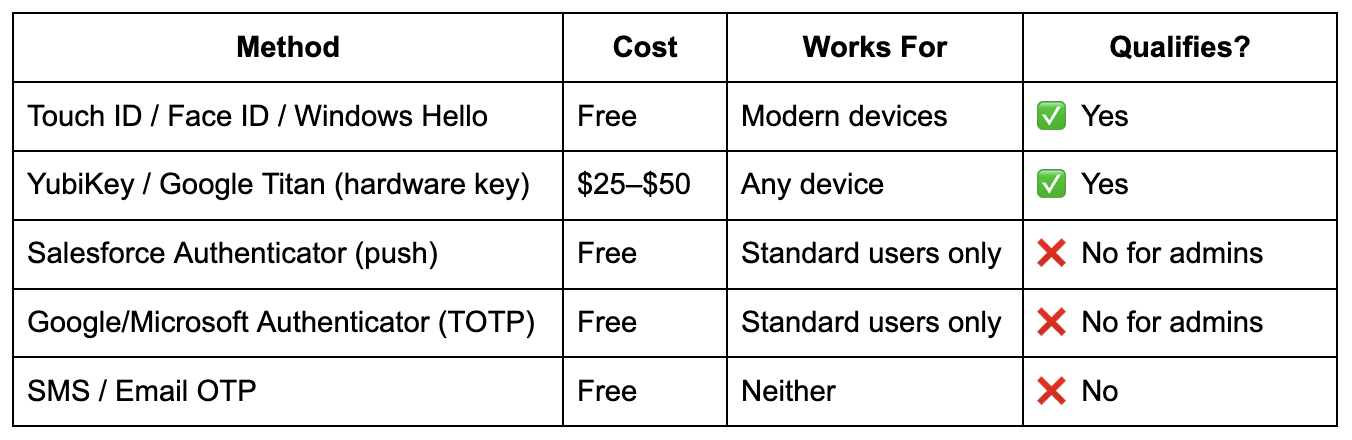
Want Help Navigating What This Means for Your Org?
If your organization has questions about implementing Salesforce’s new phishing-resistant multi-factor authentication (MFA) requirements or wants to learn more about Canvas Cloud’s Salesforce implementation, optimization, and ongoing Collab Managed Services™ — let’s talk.
Resources
https://help.salesforce.com/s/articleView?id=005321563&type=1
https://help.salesforce.com/s/articleView?id=005321561&type=1
https://1password.com/blog/what-are-passkeys
https://1password.com/blog/what-is-webauthn
https://www.salesforceben.com/fast-and-secure-mfa-unlock-salesforce-with-a-physical-key/
About the Author
Christina Lytle is a Senior Salesforce Consultant at Canvas Cloud helping nonprofits and small businesses simplify operations, improve reporting, and get real value from their CRM. Her background in theatre administration shapes a collaborative, detail-driven approach to every engagement. Connect with Christina on LinkedIn.